Dec 19, 2016


Introduction to Android Nougat: Android 7.0


Motorola Android 7.0 Nougat update list

New Features

Android Nougat introduces a variety of new features and capabilities, such as Multi-window Support, Notifications enhancements, and Data Saver. The following sections highlight these features and provide links to help you get started using them in your app.

Multi-Window Mode

Multi-window mode makes it possible for users to open two apps at once with full multitasking support. These apps can run side-by-side (landscape) or one-above-the-other (portrait) in split-screen mode. Users can drag a divider between the apps to resize them, and they can cut and paste content the between apps. When two apps are presented in multi-window mode, the selected activity continues to run while the unselected activity is paused but still visible. Multi-window mode does not modify the Android activity lifecycle.
You can configure how the activities of your Xamarin.Android app support multi-window mode. For example, you can configure attributes that set the minimum size and the default height and width of your app in multi-window mode. You can use the new Activity.IsInMultiWindowMode property to determine if your activity is in multi-window mode. For example:
if (!IsInMultiWindowMode) {
    multiDisabledMessage.Visibility = ViewStates.Visible;
} else {
    multiDisabledMessage.Visibility = ViewStates.Gone;
}
The MultiWindowPlayground sample app includes C# code that demonstrates how to take advantage of multiple window user interfaces with your app.
For more information about multi-window mode, see the Multi-Window Support.

Enhanced Notifications

Android Nougat introduces a redesigned notification system. It features a new Direct Reply feature that makes it possible for users to quickly reply to notifications for incoming text messages directly in the notification UI. Starting with Android 7.0, notification messages can be bundled together as a single group when more than one message is received. Also, developers can customize notification views, leverage system decorations in notifications, and take advantage of new notification templates when generating notifications.

Direct Reply

When a user receives a notification for incoming message, Android Nougat makes it possible to reply to the message within the notification (rather than open up the messaging app to send a reply). This inline reply feature makes it possible for users to quickly respond to an SMS or text message directly within the notification interface:
To support this feature in your app, you must add inline reply actions to your app via a RemoteInput object so that users can reply via text directly from the notification UI. For example, the following code builds a RemoteInput for receiving text input, builds a pending intent for the reply action, and creates a remote input enabled action:
This action is added to the notification:
The Messaging Service sample app includes C# code that demonstrates how to extend notifications with a RemoteInputobject. For more information about adding inline reply actions to your app for Android 7.0 or later, see the AndroidReplying to Notifications topic.

Bundled Notifications

Android Nougat can group notification messages together (for example, by message topic) and display the group rather than each separate message. This bundled notifications feature makes it possible for users to dismiss or archive a group of notifications in one action. The user can slide down to expand the bundle of notifications to view each notification in detail:
To support bundled notifications, your app can use the Builder.SetGroup method to bundle similar notifications. For more information about bundled notification groups in Android N, see the Android Bundling Notifications topic.

Custom Views

Android Nougat makes it possible for you to create custom notification views with system notification headers, actions, and expandable layouts. For more information about custom notification views in Android Nougat, see the Android Notification Enhancements topic.

Data Saver

Beginning with Android Nougat, users can enable a new Data Saver setting that blocks background data usage. This setting also signals your app to use less data in the foreground wherever possible. The ConnectivityManager has been extended in Android Nougat so that your app can check whether the user has enabled Data Saver so that your app can make an effort to limit its data usage when Data Saver is enabled.
For more information about the new Data Saver feature in Android Nougat, see the Android Optimizing Network Data Usage topic.

App Shortcuts

Android 7.1 introduced an App Shortcuts feature that makes it possible for users to quickly start common or recommended tasks with your app. To activate the menu of shortcuts, the user long-presses the app icon for a second or more – the menu appears with a quick vibration. Releasing the press causes the menu to remain:
This feature is available only API level 25 or higher. For more information about the new App Shortcuts feature in Android 7.1, see the Android App Shortcuts topic.

Sample Code

Several Xamarin.Android samples are available to show you how to take advantage of Android Nougat features:
  • MultiWindowPlayground demonstrates the use of the multi-window API available in Android Nougat. You can switch the sample app into multi-windows mode to see how it affects the app's lifecycle and behavior.
  • Messaging Service is a simple service that sends notifications using the NotificationCompatManager. It also extends the notification with a RemoteInput object to allow Android Nougat devices to reply via text directly from the notification without having to open an app.
  • Active Notifications demonstrates how to use the NotificationManager API to tell you how many notifications your application is currently displaying.
  • Scoped Directory Access Demonstrates how to use the scoped directory access API to easily access specific directories. This serves as an alternative to having to define READ_EXTERNAL_STORAGE or WRITE_EXTERNAL_STORAGE permissions in your manifest.
  • Direct Boot Illustrates how to store data in a device-encrypted storage which is always available while the device is booted both before and after any user credentials(PIN/Pattern/Password) are entered.

Summary

This article introduced Android Nougat and explained how to install and configure the latest tools and packages for Xamarin.Android development on Android Nougat. It also provided an overview of the key features available in Android Nougat, with links to example source code to help you get started in creating apps for Android Nougat.
Hi visitors......,
             I am come back again.
             Your motivation is very important to us.
             I will Create  New Post Soon as Possible...
                                THANK YOU VISITORS...,


Feb 28, 2015

The Windows 10 Technical Preview, keylogging, and you

Windows 10 Start menu Microsoft 


The Windows 10 Technical Preview, keylogging, and you

In its current Technical Preview edition, the next major version of Windows can send your keystrokes and spoken words to Microsoft. Andy Gorfman asked if it will stay that way. “Apart from taking Microsoft on trust, how do we know that [the spyware will be removed].”
Paranoia seems reasonable these days. We know that big-data companies such as Google, Facebook, and yes, Microsoft, gather information about us for commercial reasons. In addition to that, the NSA spies on us, and the big companies may be collaborating with them.
Meanwhile, the Windows 10 Technical Preview Privacy Statement is indeed a scary document. It informs us that “we may collect voice information” and “typed characters.” That’s not what you want in an operating system.
But before you panic, consider these three facts:

First, this is a technical preview of a work in progress, months away from its commercial release. It’s intended for testing, not day-to-day use. Microsoft has a legitimate reason to track how the Preview behaves in the field, for the benefit of the final product.
Take a look at the Before you install page, which clearly states that you shouldn’t use the Technical Preview if you’ll be “installing it on your everyday computer.”
Second, Microsoft is very up-front about these policies. The Privacy Statement is comparatively short at fewer than 1,800 words—and it’s written in plain, non-legalese English. The scariest part--about collecting voice information, opening files, and logging typed characters--isn't buried, but near the top.
What’s more, the above-mentioned “Before you install” page warns potential users: “If the privacy of your system files is a concern, consider using a different PC.”
Finally, Microsoft has a lot to lose if they do this sort of tracking in the final, commercial version, and the company knows it. Yes, Microsoft will still track more than you'd like, but after the Windows 8 debacle, it can’t afford the bad PR of getting caught recording keystrokes.
If you decide to try the Technical Preview, put it on a separate computer. Don’t put your password manager on that computer, and don’t use it to log on to websites that require passwords. If that PC has a microphone, keep it unplugged or disabled most of the time.
I seriously doubt that the worst spyware features will remain in the finished product.

Test your Android phone's performance with these free benchmarking tools

benchmark android primary 

Test your Android phone's performance with these free benchmarking tools

How much do you know about your phone, really? Beyond a name, a price, and vague sense of whether it’s “high end” or not, you’re probably in the dark. Even if you look up the stats, you don’t really know how it performs. The only sure way to know is to run a few benchmarks.
This not only gives you an idea of how fast your phone is, but also lets you see how it fares against marketplace rivals or older phones, and can help you troubleshoot problems by comparing against similar phones. Don’t worry, benchmarking your Android phone is easy and cheap. All these tools are free, fun to use, and a few are gorgeous enough to show off to friends.

Setup and Prep

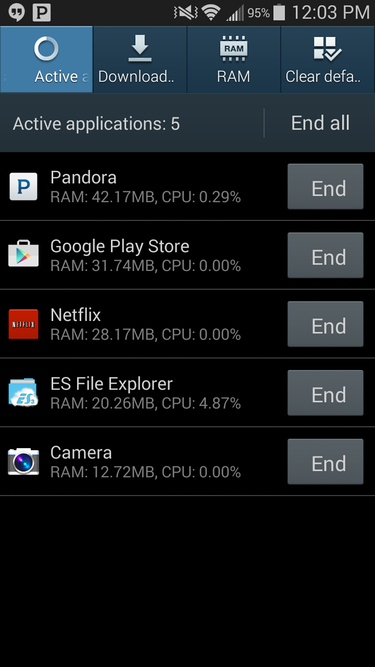
Before you benchmark your phone or tablet, you’ll want to charge it up completely, then kill all background tasks in the multitasking menu. You don’t want anything to interfere with your tests, so you also might want to put it in Airplane mode to prevent it from fetching mail or receiving calls.
Samsung task manager from KitKat – Kill ’em all.
Make sure the ambient temperature isn’t too hot, as the difference in results can be dramatic. If you’re running a bunch of these tests in a short time and find the device is getting really hot, causing benchmark scores to fall, try removing any heavy cases like Otterbox’s Defender. They act like insulation.
samsungtaskman01
You can record results using the app’s online databases (virtually all benchmarks feature one), or take screenshots of scores for reference later on. Just don’t do it during the benchmark. In fact, don’t touch your device at all during a test run. None of these apps take long to run. Set it down, press start, and wait.

Interpreting Results

Don’t expect test results to tell you everything. Established designs sometimes outperform newer replacements thanks to better cooling or highly-tuned code. Bigger devices like tablets simply have more space to play with, allowing the use of faster, more power-hungry chips.
Also in play are manufacturer and carrier Android add-ons that make a big difference in how fast a device can feel. The HTC One (M8) doesn’t have the fastest Snapdragon processor, yet its slickly tuned interface makes it feel top-shelf. Samsung’s TouchWiz has the opposite effect, introducing the occasional pause or hiccup that can make their hardware designs seem less cutting edge than they really are.
And of course, the fastest phone isn’t necessarily the best. You have to consider size, design, materials, camera quality, sound quality, and much more. 
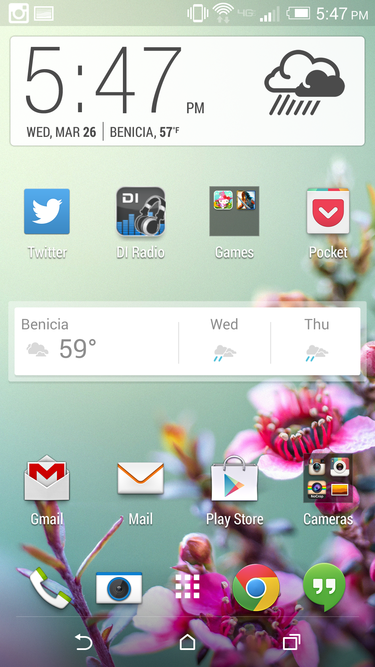
The HTC One M8 punches above its hardware class due to careful OS tuning and HTC’s light touch with its Sense UI.
htconehomescreen01
Gamers have unique needs when it comes to performance. Super high-density screens are easy on the eyes, but it’s tough for small, low-power mobile graphics processors to run games smoothly at really high resolutions. As displays skyrocket to 4K, selecting a device with a fast graphics processor and a slightly lower display resolution can help keep those demanding 3D games running smoothly.
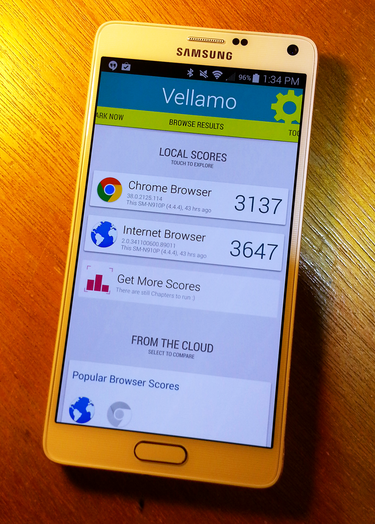
Samsung’s Galaxy Note 4 packs a pixel-dense screen but provides the GPU horsepower to drive it swiftly. 
note4vellamophoto01
Most of the benchmarks here are also available for operating systems other than Android. Cross-platform benchmarks are useful because they provide a satellite view of where your hardware lives in the wider world of tech. Sure, it’s nice to know if your tablet is as fast as an iPad Air 2, but it’s just as interesting to know how it compares to a thin and light laptop.
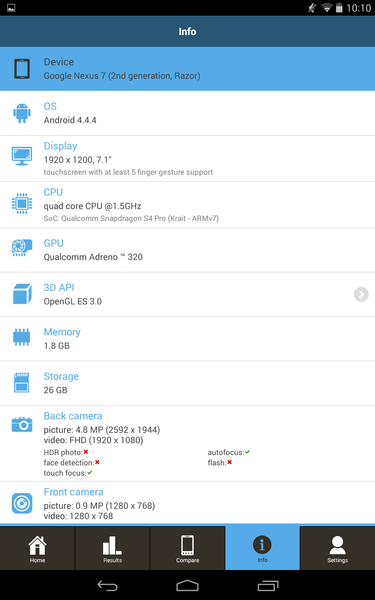
Benchmark information screens have detailed breakdowns on your device’s innards.

3DMark

3DMark reigns supreme for PC gamers and has made impressive headway on other platforms as the de facto standard for 3D benchmarking. The free Android version includes a flashy demo reel as well as the physics and GPU tests from the “Ice Storm” module of the Windows suite, while adding a few mobile-specific queries like battery life tests. 

geekbench3devicenfo01
icestormdemo01
Even PC gamers who recognize this pitched battle will be impressed watching it on a super AMOLED screen in 300+ pixels per inch.
Usage is push-button simple. Results are shared online via Futuremark’s cloud database and web comparison system. It’s easy to see where you sit on the ladder, and although this feature isn’t exclusive, Futuremark has been doing it a lot longer than anyone else here, so the tools provided for comparing, recording, and sharing are mature and well-executed.
3dmarkresultslist01
You can compare your tablet or phone to pretty much any computing device made in the last 5 years, unless it’s a Mac.
CPU test results track with real-world usage but are geared more towards gaming loads than everyday operations. The battery test is handy, but has the same limited scope. It only gives you an idea of how long your device will last while pushing pixels as hard as it can.

GFXBench 3.0

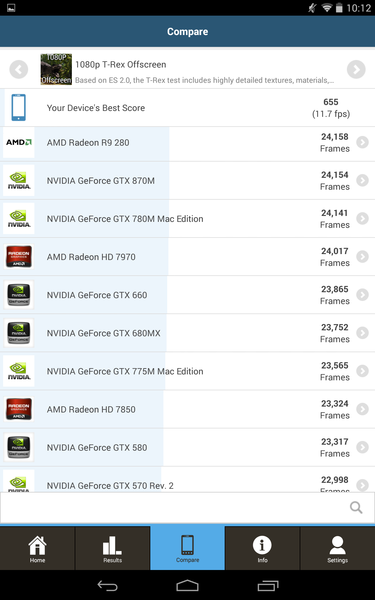
3DMark isn’t the only game in town when it comes to mobile GPU benchmarking. GFXBench arrived early in Android’s history and delivers more detailed results than Futuremark’s flagship. It’s also smaller; a big advantage if space is at a premium and your phone or tablet doesn’t support removable media.
GFXBench is all about the details, and the developers serve them up page after page. You get more than framerates, and the numbers aren’t abstractions. Driver overhead figures, rendering quality tests, precision, and computing performance all get attention, taking GFXBench beyond gaming and deep into graphics geek territory. Like 3DMark, you also get access to a crossplatform database that extends to desktop systems, but GFXBench doesn’t leave Mac users out in the cold.
Unlike 3DMark, GFXBench supports the Mac so you may stoke your Apple envy or release your scorn at will.
Accurate results aside, certain areas of the test look decidedly low-rent these days. Objects, effects, lighting, and other aesthetics are in need of a makeover.
gfxbenchresultsdb01
This poor T-Rex never seems to catch a meal. Maybe he needs more polygons. 

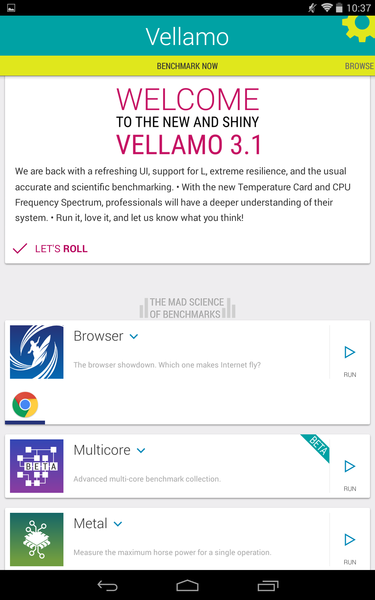
Vellamo

The hardware moguls at Qualcomm may have created Vellamo, but they don’t play favorites; the results show no favoritism towards Snapdragon processors. Vellamo doesn’t test everything. It’s mainly focused on testing browser speed, but also includes a mode called Metal that goes low-level for CPU, memory, and bandwidth testing, and a Multicore mode that tests the efficiency of thread latency and handling.
Browser benchmarks may have fallen out of favor as stand-ins for proper mobile CPU tests, but they can still tell you quite a bit about the efficiency of the web browsing engine. On Android, changing up your browser can have a huge impact on performance.
Like most of the packages here, running the main suite takes a single button press, but some of these tests run a few minutes, so bring along some patience. Fortunately, Vellamo happens to be a pleasure to use, with elements of Material Design already incorporated into the user interface ahead of Lollipop’s release, so waiting isn’t a chore.
Vellamo’s slick user interface, colorful imagery and animated results screens make you almost forget this is a browser and CPU benchmark.
vellamostart01
Swiping left on the start screen brings up the results table, device comparison list, and information panels, although you won’t find desktop computers or operating systems other than Android represented here. Qualcomm’s benchmarking largess extends only to compatible hardware.

Geekbench 3

Unlike the others, Geekbench sneers at fashion and wears its sparse starting page like a hoodie at a shareholder’s meeting. No starship battles occur onscreen during the tests and no floating transparencies adorn the results window. All you get is a progress bar that slowly makes its way across the screen from zero to 100. When everything’s done, you get in-depth tables of results about the speed of your CPU and memory subsystems.
After spending a lot of time with these apps, I can tell you from personal experience that sometimes just getting the numbers straight up is more appealing than it sounds. GeekBench serves them up quickly, too.
geekbench3start01
Not many options here, but sometimes a little is enough.
Results are broken down into Integer, Floating Point, and Memory sections with device rankings for single and multi-core results. There’s enough detail here to satisfy most queries about these subsystems, and developer Primate Labs provides an online results browser to manage your scores. When it comes to CPU testing, Geekbench is everything you need and nothing that you don’t. That’s a handy mix.
geekbench3results01
Just the facts, ma’am.

Basemark OS II and Basemark X

Basemark is one of the most comprehensive benchmarking suites available on Android with sibling apps that cover OS and gaming separately. The code is fresh, but the approach is old-school and will appeal to longtime PC benchmarking veterans.
Basemark OS II is geared towards productivity and general use but unlike most of the other packages here, some useful features (including the battery test) are restricted to a pay version that you’ll need to contact the developer Rightware to obtain. CPU, storage, memory, web browsing, and camera tests are all included in the free version available on Google Play, however.
The free version of Basemark OS II is missing the battery tests but covers the bases otherwise.
Basemark X tests the gaming performance of the GPU using the popular Unity engine. Several quality levels are supported: you can boost the shadow level, texture size, and image effects to pour on the pressure for newer hardware.

Basemark X has the same flaws as its sibling; making users pay for features other packages give away. Useful items such as antialising, resolution settings, and score breakdowns are reserved for paying customers, and just like its counterpart, you can’t buy the full version on the Play Store.
There’s plenty to like here otherwise, and Basemark X’s wide adoption means this one is worth putting alongside 3DMark or GFXBench, even if it means missing a few bells and whistles or shelling out for the full version.
basemarkxdesertwreck01
High-resolution textures and advanced image effects make scenes come alive in Basemark X.

Antutu 5

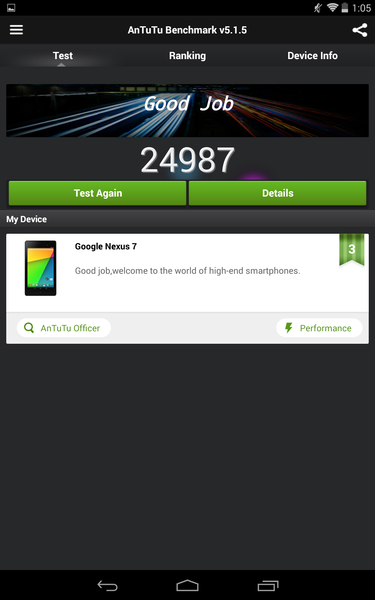
Antutu, the venerable Android benchmarking standby, received a major update to version 5 in October (currently at 5.2) , addressing a few gaps in CPU and GPU testing that had opened up with age. Single-core CPU performance is now included, as core counts have begun to climb faster than developers can write the software that uses them, and diminishing returns are starting to kick in.
The GPU benchmark gets a facelift also, upping complexity and adding in the Havok Vision Engine for real-world gaming results. Full support for Lollipop, ART, and the new 64-bit hardware from Qualcomm and Nvidia means Antutu 5 is ready for the very latest hardware.
Translations here and on the website are rough but serviceable, which describes Antutu 5 in more ways than one.
antuturesults01
The results here are accurate but broad rather than deep. As a light, all-in-one benchmark Antutu is hard to beat, which explains why you see it cited everywhere. This lack of depth can find you looking for other benchmarks when you need to dig down, however. The bigger packages aren’t that complex to use or read anymore. That, and the nag to install Clean Master every time you quit can make you wonder why you keep it around. You almost certainly do not need Clean Master.

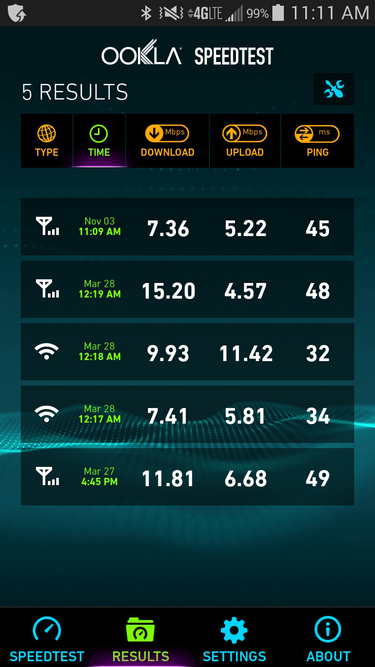
Ookla (aka Speedtest.net)

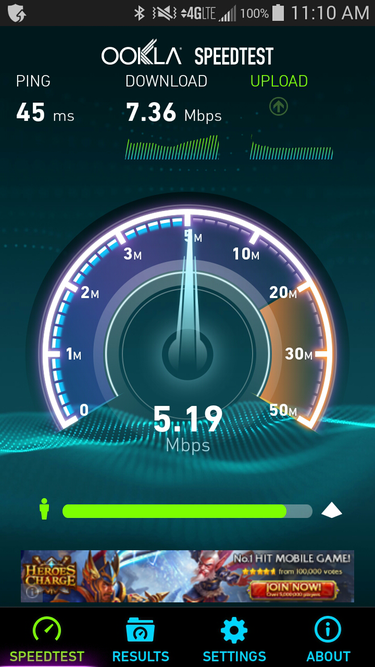
Mobile devices aren’t all about hot hardware; they are also highly dependent on carrier performance and phone location for their overall perceived speeds. Even snappy devices can feel dead in the water when you’re stuck with a flaky LTE signal. Ookla is an internet speed meter that runs bandwidth and latency tests to servers in any region you specify, from a nearby city to across the continent.
Ookla’s colorful interface remains intact in the newest version, but advertisements and upsells abound.
ooklastart01ooklaresults01
Net speed tests have plenty of uses beyond the obvious. With Ookla you can see if your carrier is playing games by throttling your unlimited data rates to dialup speed, or if your blazing new 4G phone is faster on its own cellular network than your home Wi-Fi. The answers might surprise you.
Ookla keeps a history of past test results handy so you can see your system’s broadband performance over time. 

Bench like a Pro

Benchmarks tease out problems quicker than any other type of software, and they’ll turn you into a hardware expert in the blink of an eye. Don’t get too carried away, though. There’s a lot more than numbers to consider when it comes to performance.
Speed freaks will run into the hard reality that high-end desktop and even laptop systems are orders of magnitude more powerful than anything in the mobile space today, despite claims of "desktop-class performance" coming from every manufacturer from Apple to Nvidia. On the other hand, try booting a modest desktop system with the miniscule 5 watts of power most mobiles thrive on.
Impressive performance comes in all kinds of packages, big and small. Just a few minutes with some free apps can help you determine if that hot new phone really is that much faster than the one you're using now.


Lock your phone to a single app with Lollipop’s screen pinning

lollipopscreen pinning primary 

Lock your phone to a single app with Lollipop’s screen pinning

Here’s the scenario: You hand your phone to your three-year-old to keep them amused in the back seat of the car. When you get your phone back 20 minutes later, though, you realize that your kid has deleted half your apps, texted your ex from college, and wrote the Great American Novel.
Not good. Except for that last part. That’s pretty cool. You have a smart kid.
But you could have averted this digital disaster if you used Android 5.0 Lollipop’s screen pinning feature. This new addition makes it more difficult to switch from one app to another—and accidentally wreak havoc on someone’s phone. Here’s how to set it up.
Open the Settings app, tap Security, then tap Screen pinning—it’s located under the “Advanced” heading. Next, toggle the screen pinning toggle to the “on” position.
screen pinning settings
Turning on screen pinning is just a few taps away.
To use screen pinning, tap the Overview button (the square button in the lower right corner of your screen), and swipe up and down until you find the app you want to pin. Once you find the app you want to pin, tap the Pin button—it’s a blue-green button with a white pushpin on it.
screen pin button
Tap the pushpin icon to pin that app to your screen.
When you’re ready to turn off screen pinning and move on to another app, hold down the Back (triangle) and Overview buttons at the same time for a second or two, until your phone tells you that it has unpinned the screen in question. There's even an option to require your security pin/password if you like. So now you can hand your phone over to your kid with a little less anxiety.


Master notifications in Android Lollipop with Notification Priority and Downtime

android notifications 

Master notifications in Android Lollipop with Notification Priority and Downtime

Android 5.0 Lollipop comes with a cadre of features that let you take better control of the notifications you see on your phone—and set times for when you don’t want to be inundated with notifications at all. We’ll show you how to take advantage of these features, so you never again get woken up at 1am just because someone mentioned you on Twitter.
To start, head on over to your phone’s Settings app, then tap Sound & notification—a one-stop shop of sorts for all things related to notifications and alert sounds.

Priority interruptions

Lollipop introduces the concept of “priority notifications”: These notifications rise to the top of the notifications screen, and you’ll continue to receive auditory or vibrate alerts for these notifications even when you have all other notifications muted.
If you’d like to be alerted only to these sorts of notifications, tap Interruptions. From this screen, you can choose to limit the sorts of notifications you’ll be alerted to, and whether you want to set some quiet hours.
First, set your priority preferences by tapping “When calls and notifications arrive.” A menu pops open with three options:
  • Always interrupt allows all notifications through—everything from calls to texts to app updates
  • Allow only priority interruptions will only alert you of certain kinds of notifications—calls, messages, events, and reminders. You can pick and choose which of these you want to be alerted to.
  • Don’t interrupt turns off all alerts for all notifications.
For the sake of this example, we want to limit alerts to only priority interruptions, so choose “Allow only priority interruptions” from the menu. Once you do that, it’s time to choose which kinds of notifications you want to give priority to. Toggle the Events and reminders, Calls, and Messages sliders accordingly, based on your preferences. For this example, I’m switching all three to the “on” position so all three kinds of notifications receive priority.
interruptions settings
Priority interruptions lets you continue to receive audio alerts for certain kinds of notifications while silencing others.
If you decide to allow calls and messages through as priority interruptions, tap Calls/Messages from, and choose whether you want to receive notifications for calls from anyone, from starred contacts only, or from all your contacts but nobody else (“Contacts only”).

Downtime

If you want to allow all notification alerts through most of the time, but want to limit alerts during certain hours (like when you’re sleeping or at the office), Downtime is for you. During Downtime hours, you’ll only be alerted to priority interruptions; your phone will receive all other notifications silently. They'll be there, waiting for you when you wake up, but your phone will not light up the screen, make a noise, or vibrate.
downtime
Lollipop lets you set Downtime for specifc days of the week.
If you want to use Downtime, you first need to choose the days of the week and times you want to set as notification quiet hours. Start by tapping Days: Select the days of the week you want to have Downtime do its thing, then tap Done. Next, tap Start time and select what time you’d like to start Downtime. Tap OK, then tap End time and repeat the process.

App notifications

Lollipop also lets you choose to block apps from sending notifications entirely, or to mark notifications from certain apps as priority notifications.
app notifications
You can designate notifications from specific apps as priority notifications—or block them entirely.
First, head back to the Sound & notification settings screen. Next, scroll to the bottom and tap App notifications, then tap on the app for which you want to adjust notification settings. Toggle the Block slider to the “on” position to stop receiving notifications from that app. Toggle the Priority slider to “on” if you want notifications from that app to be considered Priority notifications.
You can also get to this screen any time an app's notification appears by pressing and holding on the notification until you see the little info button (it looks like a lowercase "i" in a circle) appear. Tap on that, and you'll go straight to the notification settings for that app.
Once you’re done, exit the Settings app and enjoy your newfound mastery of Lollipop’s notification system.


How to make the most of Android 5.0 Lollipop’s new lock screen settings

lock screen locked 

How to make the most of Android 5.0 Lollipop’s new lock screen settings

The lock screen in Android 5.0 Lollipop is a strange beast. Google has done away with the lock screen widgets, which never really caught on, and replaced them with notifications.
At the same time, there are multiple new ways of securing the lock screen and keeping your personal data private. The options to do all this are scattered throughout the settings, because Google apparently likes to keep us on our toes. Here’s how to get it all set up.

Tune your notifications

This first step will be familiar to long-time Android users. Go into the main system settings and find the Security menu. From there, change the screen lock type to something other than swipe—PIN, pattern, password, or whatever you want. Remember that if your device is encrypted you’ll need to enter this code when starting up.
lock screen
Notifications show up on the lock screen just like they would in the notification shade.
Where things take an unexpected turn is after setting the code, you will be asked what sort of notifications you want available on the lock screen. You can choose to have them all shown, only non-sensitive content, and none. Don’t worry—this is not an irrevocable choice. You can go into the Sound and Notification menu at any time to change this global setting.
So what does "sensitive content" mean, anyway? You can pick any app to set its notifications as sensitive, which will prevent any of its notification text from appearing on the lock screen. There are a few ways to reach the right menu. The easiest way to manage multiple apps is to go into Sound and Notifications and scroll to the bottom. This is where you’ll find the option to change the global notification security mentioned above, but we’re looking for the App Notifications line.
lock screen sensitive
Set apps as sensitive to keep private info off the lock screen.
The App Notifications list shows all your installed apps. Simply select the ones you want to set as sensitive, set the Sensitive switch to the on position, and your secrets will be safe. You'll still get notifications, but they'll just say, for example, that you have 2 new emails, rather than listing the subject lines. You can also access an app’s notification settings by long-pressing on one of its notifications and tapping the info button that appears. This gets you to the same menu in a single tap.

Smarter Smart Lock

Maybe you noticed the lack of face unlock in the security options. That’s because Google has completely revamped that feature as part of the new Smart Lock system. There are currently three features in Smart Lock—trusted devices, trusted face, and trusted places. That last one is still rolling out via a Google Play Services update, though. All these options are used to bypass your pin, pattern, or password, temporarily defaulting back to the simple swipe-up unlock gesture.
lock screen smart lock
You don’t have to put in the code every time.
Trusted devices lets you specify a Bluetooth device or NFC tag that will keep the phone unlocked when the phone is connected to it. Trusted face takes the place of face unlock, but the setup process is much the same. You position the viewfinder so it can see your face and wait a moment. When you wake the phone, it can look for your face in the background while you check out the notifications on the lock screen. If it spots you, the lock screen switches on the fly to a simple swipe. You'll see the little padlock icon at the bottom change to show that it's unlocked. It’s very clever.
The last option, trusted places, has toggles for your home and work addresses (if you’ve set them in Google Maps) but you can also add a manual location. If you’re in that area, the phone will remain unlocked. Should the phone leave that geofence, the secure lock screen reasserts itself. This and the other Smart Lock options can be temporarily disabled by pressing the lock icon at the bottom of the lock screen. That will force a secure unlock the next time the phone is used.
Android will remind you about Smart Lock the first time you use it to bypass the lock screen.
lock screen trusted2
Google has vastly expanded your options in Android 5.0, and it can be a little intimidating, Just take a few minutes and set everything up so you can properly enjoy the peace of mind it brings. With the right settings, you can have a more secure phone and make it faster and easier to use.